Tools
G-Scan
Fast disk analysis tool for admins
1.16.11
971 KB
Overview
2.8 s
a full scan of a 1.82 TB drive
1,376,677
files read straight from the MFT
0.23%
from what Windows itself reports
971 KB
one executable, no runtime, no install needed
G-Scan is built for speed: it reads a whole NTFS drive straight from its master file table instead of asking Windows for folder listings. Use it the way the job asks for, on the machine in front of you or one across the network.
| Interface | A web page on your own machine. Nothing is scanned until you choose a target, and nothing calls out by itself: About asks garia.net for a newer version only when you click. |
| Command line | gscan.com --scan C:\ --out c.json scans, writes JSON or CSV and exits with a code, for scripts and RMMs. gscan.exe "D:\data" opens the page on a scan; --ext and --find narrow the file list to certain extensions or names; --server, --agent, --show-key and --check-update do the rest. |
| Service | The agent runs as a Windows service. Open any machine that has it from your browser. |
| API | Every button is one HTTP call with JSON, for automation and third-party tools. |
| Deployment | An MSI with real properties for SCCM, Intune, GPO and NinjaOne, and ready-made NinjaOne scripts for a disk report, a low-space alert and CSV exports. |
Scans disks, folders, WSL, network shares and Linux over SSH
C:\ D:\data WSL \\SERVER\C$ \\NAS\share user@host:/path
What you get
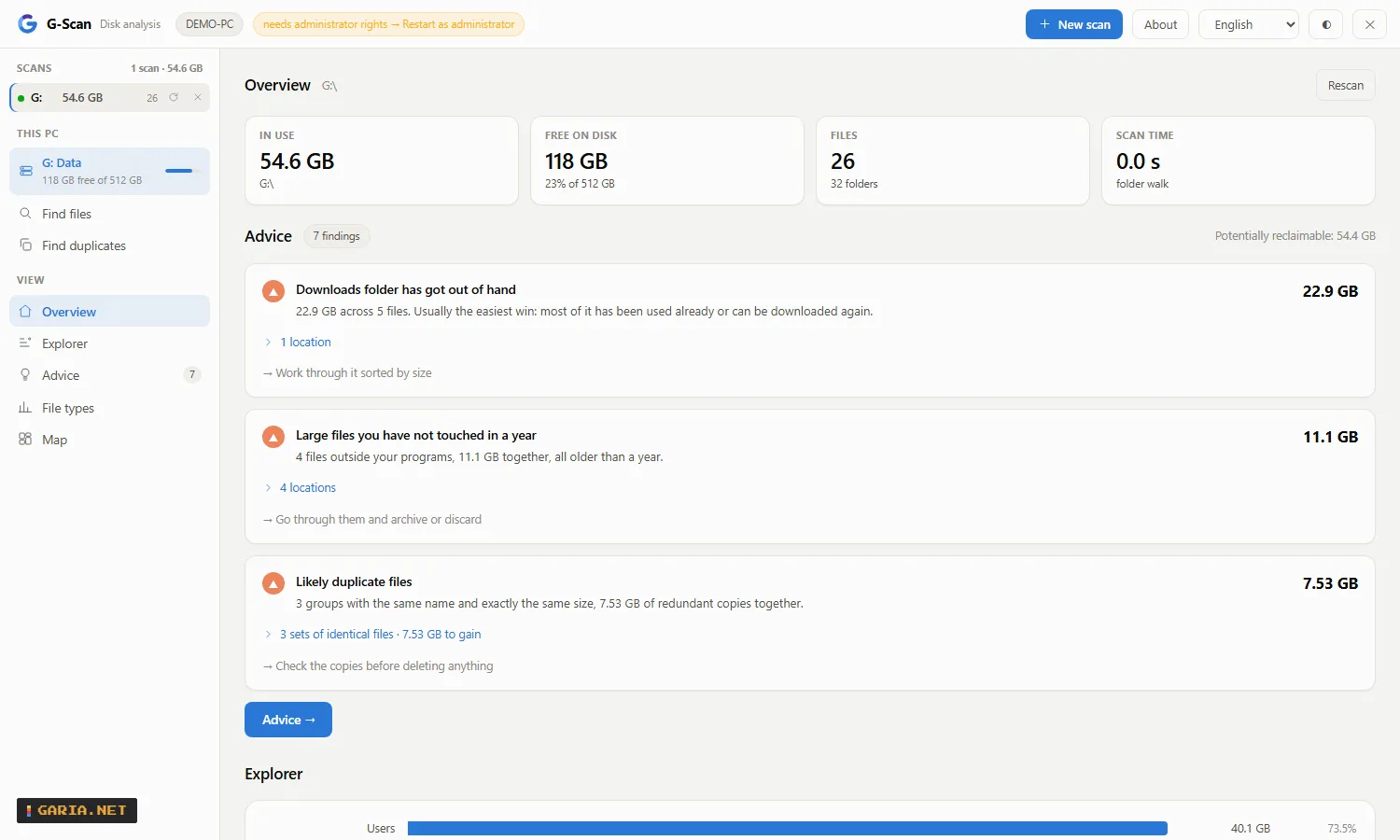
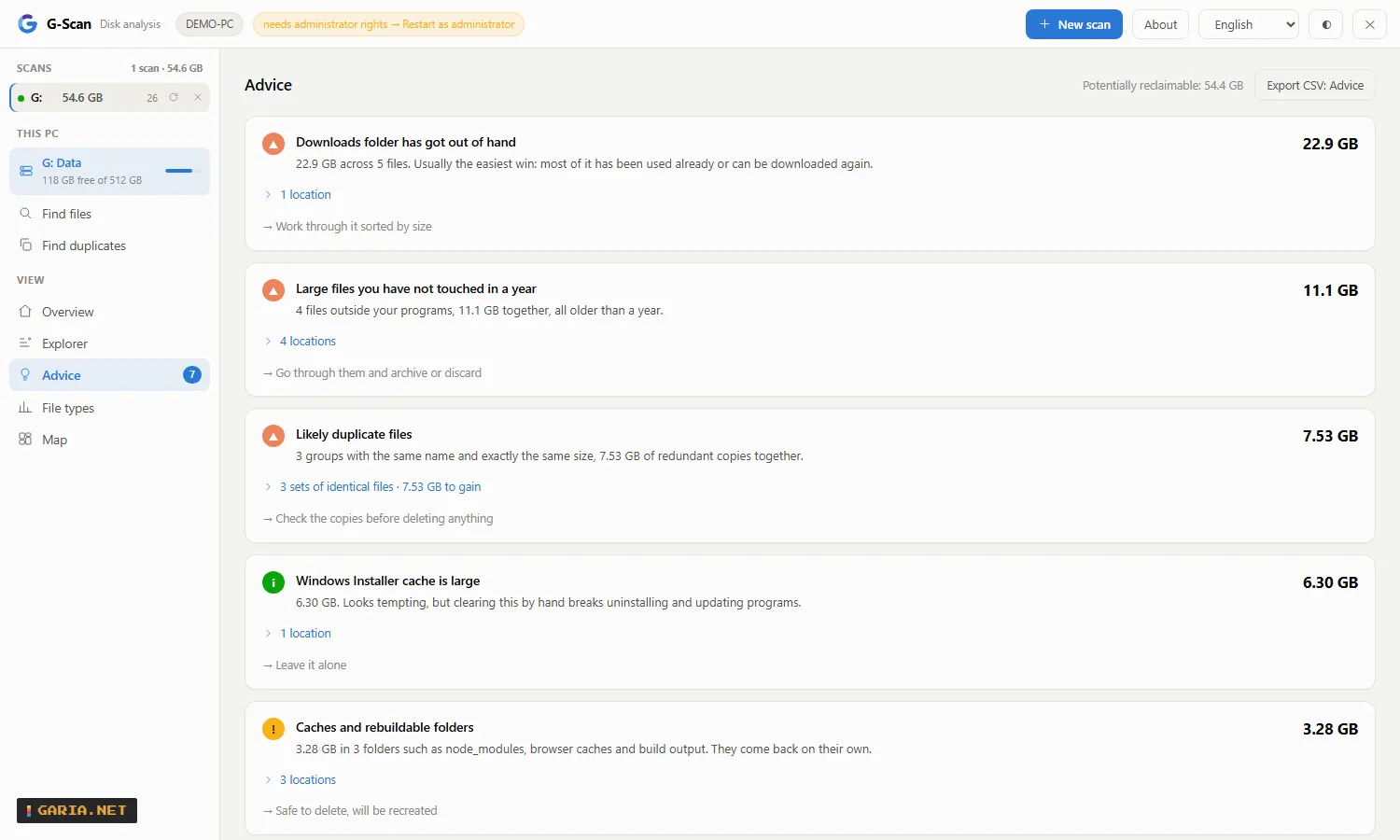
| Advice | What can go, with the gigabytes attached, and what to leave alone. |
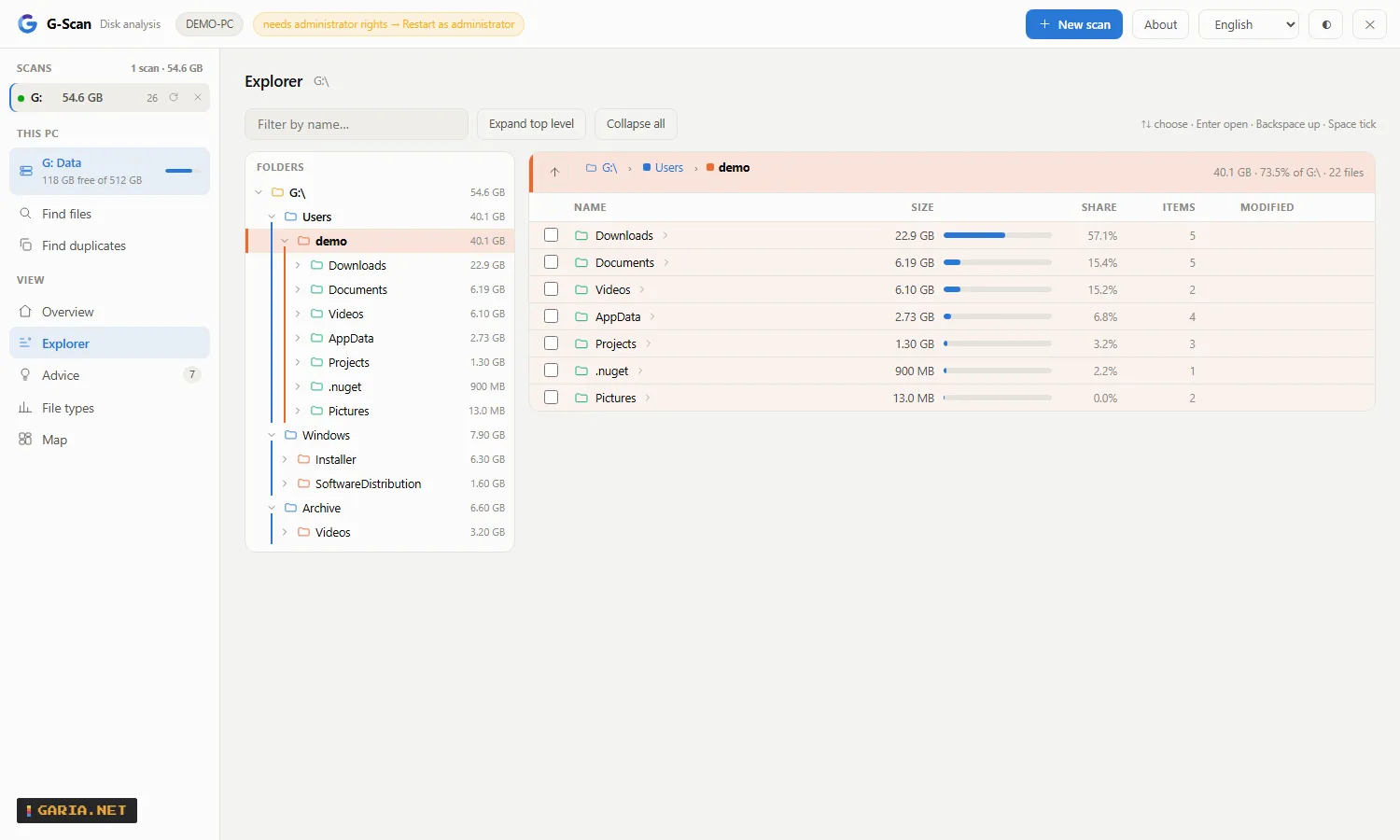
| Explorer | Two panes, like Windows Explorer: a folder tree, and the contents of the open folder by size with each item’s share. Every folder level has its own colour on both sides. Driven by the keyboard. |
| Find files | Where is this. Across the scans you tick, by kind — photos, video, audio, documents, archives, installers — by extension, or by name with a * in it. Nothing is read, so it lists in seconds, and asking again is nearly free: the listing is remembered per scan. |
| Duplicates | In one scan or several: choose one or more kinds of file and the smallest size, same name or content alone. Confirmed by reading the files. |
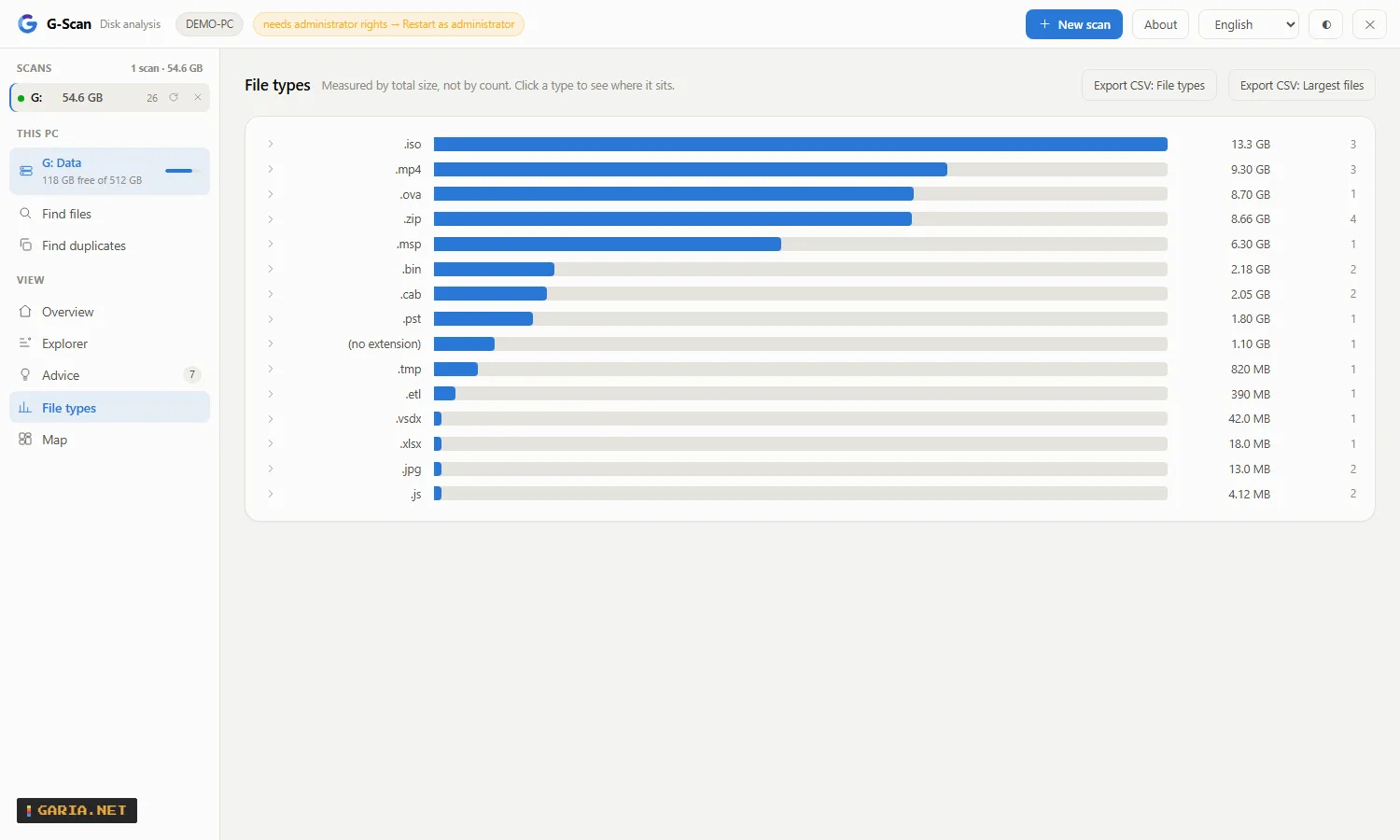
| File types | Which kinds of file take the space. |
| Export | File types, files and advice as CSV from the page, or the whole result as JSON or CSV from the command line. |
| Map | A zoomable treemap. |
| Delete | Recycle Bin by default, system paths refused, everything logged with its size. The figures follow at once: in use drops by what was freed, and what went to the Recycle Bin is shown until you empty it. |
Without administrator rights it walks folders at about 175,000 files a second and reports what it could not read, instead of quietly showing less.
Screenshots
Examples
Scan a folder right away
gscan.exe "D:\data"Hand it to a user without installing anything
Copy gscan.exe to their machine and let them start it. As a standard user it walks folders and reports the part it could not read; one click on Restart as administrator switches to turbo mode.
One install for the whole team, on a jump host
gscan.exe --server --token <key> --port 8443Anyone on the network opens http://jumphost:8443/, enters the key once, and scans the host’s disks, any \\SERVER\C$, any NAS share and any Linux host, several at the same time. G-Scan does no TLS itself: keep it on a management network or put a reverse proxy in front.
An agent on a server you check every week
gscan.exe --agent --port 7777
gscan.exe --show-key
Export the file types of a folder to CSV
$gscan = "$env:ProgramFiles\GariaNetTools\G-Scan\gscan.com"
& $gscan --scan D:\data --out types.csv --what types
In a script or an RMM: scan, read the result, act on the exit code
[Console]::OutputEncoding = [Text.Encoding]::UTF8
$r = (& $gscan --scan C:\ --out -) -join "`n" | ConvertFrom-Json
if ($LASTEXITCODE -ne 0) { exit 1 }
$r.advice | Select-Object code, bytes
Use gscan.com, not gscan.exe: PowerShell does not wait for a program without a console. Exit code 0 is done, 1 the scan or writing failed (the reason is on standard error), 2 wrong arguments. The JSON is what /api/result returns, the CSV what /api/export returns. gscan.com --check-update asks garia.net for the latest version: exit code 0 up to date, 3 newer, 1 could not check.
Find every stray mailbox file on a drive
& $gscan --scan C:\ --ext ".pst .ost" --out mail.csv --what filesOr by name: --find "invoice*", where * is any run of characters, ? exactly one, a name with neither means contains, and a semicolon separates several patterns. Both drop the 50 MB threshold, so a small file is found too; the totals still count the whole drive. The same filter is Find files in the page.
Read the agent key straight into a script
$key = & "C:\Program Files\GariaNetTools\G-Scan\gscan.exe" --show-keyInstall (MSI)
Install options
An MSI with real properties, so it goes out through SCCM, Intune, GPO or NinjaOne without a wrapper script. Double-clicked it is a wizard; with /qn only the properties count. Per-machine, 64-bit, and uninstalling removes the service, the firewall rule, the shortcuts, the context menu and the registry keys.
Updating does not ask for a restart, and it keeps the choices of the previous installation unless you pass others. Anything still running from the installation folder is closed first, an agent included: the service through the service manager, and an agent started by a scheduled task or an RMM is closed and then started again with the command line it had. An agent running under an account of its own is closed but not restarted, because its credentials are not the installer’s to hold. What was closed and what came back is written to HKLM\Software\Garia.Net\G-Scan\LastUpdate.
msiexec /i G-Scan-1.16.11-x64.msi /qn
msiexec /x G-Scan-1.16.11-x64.msi /qn| Property | Default | Meaning |
|---|---|---|
| INSTALLFOLDER | %ProgramFiles%\GariaNetTools\G-Scan | Install location |
| UIPORT | 7666 | Port of the local web interface |
| AGENT | 0 | 1 installs the remote agent as a Windows service |
| AGENTPORT | 7777 | Port of the agent and of its firewall rule |
| TOKEN | — | Key for the agent; left out, the agent makes its own |
| CONTEXTMENU | 1 | Analyse with G-Scan on folders and drives |
| DESKTOPSHORTCUT | 0 | Shortcut on the desktop |
| ALWAYSADMIN | 0 | 1 always starts G-Scan as administrator |
| SERVICEACCOUNT | — | Account for the agent service; empty is LocalSystem |
| SERVICEPASSWORD | — | Password for that account; not needed for a gMSA |
Everything at once
msiexec /i G-Scan-1.16.11-x64.msi /qn ^
        INSTALLFOLDER="D:\Tools\G-Scan" ^
        UIPORT=8100 AGENT=1 AGENTPORT=8101 TOKEN=<key> ^
        CONTEXTMENU=1 DESKTOPSHORTCUT=0
The setup wizard, silently
G-Scan-1.16.11-setup.exe /VERYSILENT /DIR="D:\Tools\G-Scan" /PORT=8100 /AGENTPORT=8101
G-Scan-1.16.11-setup.exe /VERYSILENT /TASKS="desktopicon,contextmenu,agent"
The web interface listens on 127.0.0.1 only, so it needs no firewall rule. The agent’s rule is inbound TCP on AGENTPORT, private profile, local subnet, and only exists with AGENT=1.
Service account
Which account the agent runs as
By default the agent service runs as LocalSystem: it always works and it can read every file. Choose anything else with one thing in mind: an agent exists to read everything, and what an account cannot read is missing from the answer.
| SERVICEACCOUNT | When | Password |
|---|---|---|
| (empty) → LocalSystem | The default; always works | none |
| DOMAIN\svc_gscan$ | A fleet in AD: a gMSA in the local Administrators group | AD rotates it |
| DOMAIN\user | When it has to be a named account | yours to manage |
| NT SERVICE\GScanAgent | Only if you grant that SID the rights yourself | none |
msiexec /i G-Scan-1.16.11-x64.msi /qn AGENT=1 SERVICEACCOUNT="CONTOSO\svc_gscan$"The installer grants the account Log on as a service itself, and keeps SERVICEPASSWORD out of the installation log. A virtual account is low-privileged by design, so turbo mode is unavailable under it.
SYSTEM is not a superset of you. It reaches other machines as the computer account, so a UNC path you can open may be refused. Its SSH keys live in C:\Windows\System32\config\systemprofile\.ssh; a password with the scan avoids that. And what it deletes goes to SYSTEM’s recycle bin and log.
NinjaOne
Ready-made scripts for NinjaOne
Three PowerShell scripts that run G-Scan from NinjaOne without a browser, a port or a key. Paste one into the automation library, run it as System, and schedule it. None of them deletes anything, and they work the same from any other RMM or a scheduled task. They also ship in the installation folder under docs\ninjaone.
| Script | What it does | Exit code |
|---|---|---|
| GScan-DiskReport.ps1 | Scans a drive and fills custom fields: a summary, free space in percent, what a safe clean-up frees, and an HTML report of the largest folders and the findings | 0 filled, 1 scan failed |
| GScan-DiskAlert.ps1 | Checks free space first and only scans when it is low; the output then says where the space went | 0 fine, 1 low |
| GScan-Export.ps1 | Writes the largest files, the file types and the findings as CSV to a locked-down folder, optionally copied to a share | 0 written, 1 failed |
Custom fields for the report
| Field | Type | Holds |
|---|---|---|
| gscanSummary | Text | Used, free and safe clean-up in one line, with the largest folder |
| gscanFreePercent | Integer | Free space in percent |
| gscanCleanableGb | Decimal | Recycle Bin, temporary files and downloaded updates together |
| gscanReport | WYSIWYG | The largest folders with their share, and the findings |
Create the fields first and allow automations to write to them; other names go in as parameters. Every setting is a parameter with a sensible default, such as -Drive D:\ -MinFreePercent 15, or a script variable with the same name. Tested under Windows PowerShell 5.1 with a stand-in for NinjaOne’s field command, not yet inside NinjaOne itself: if a field stays empty, check its name, its type and whether automations may write to it.
API
Everything the interface does, from a script
Plain HTTP with JSON, no SDK. Every button in the page is one call, which makes G-Scan easy to build into automation and third-party tools. Against an agent, send the key as X-GScan-Token. The Postman collection has an example for every call, and it also ships in the installation folder under api.
A request that a browser marks as coming from another website gets 403 foreignOrigin, so a web page cannot use G-Scan behind your back; scripts, curl, PowerShell and Postman are not affected. On the machine itself, gscan.com --scan C:\ --out - returns the same result as /api/result without the web server.
# start a scan
$r = Invoke-RestMethod 'http://127.0.0.1:7666/api/scan' -Method Post `
     -Body @{ path = 'C:\'; kind = 'drive'; label = 'C:' }

# wait for it
do {
  Start-Sleep -Milliseconds 400
  $j = (Invoke-RestMethod 'http://127.0.0.1:7666/api/jobs') | Where-Object id -eq $r.id
} while ($j.state -eq 'scanning')

# the findings, as codes with numbers
$res = Invoke-RestMethod "http://127.0.0.1:7666/api/result?id=$($r.id)"
$res.advice | Select-Object code, bytes| Endpoint | Does |
|---|---|
| GET /api/hello | Is it there, does it want a key, may it be shut down |
| GET /api/targets | Drives, WSL, machine, version, whether turbo is available |
| GET /api/browse?p= | The folders inside a path, live, without a scan |
| POST /api/scan | Start a scan: path, kind, label, and for SSH optionally password |
| GET /api/jobs | Every scan with its progress |
| GET /api/cancel?id= | Stop a running scan |
| GET /api/result?id= | The outcome: tree, largest files, types, advice |
| GET /api/dirs?id=&p= | Any folder at any depth, with totals |
| GET /api/files?p= | The files in one folder, live from disk |
| GET /api/ext?id=&e= | Where one file type sits, and its largest files |
| GET /api/export?id=&what= | CSV of types, files or advice |
| POST /api/delete | Delete, with dryrun=1 first; the scan follows at once, with what was freed and what went to the Recycle Bin |
| POST /api/emptybin | Empty the Recycle Bin on every drive, report what it freed, and update the scans |
| POST /api/cleanup | Empty the folders of one finding: temp files or Windows updates |
| GET /api/verifydups?id= | Confirm suspected duplicates by reading them |
| POST /api/dupsacross | Find duplicates: scans (ids), extensions (exts), smallest size (min), same name (names); GET for progress and the result |
| POST /api/findfiles | Find files: scans (ids), extensions (exts), name patterns (names), smallest size (min), sort; returns at once |
| GET /api/findfiles | Its progress, or the files it found with the choices it ran with. The listing is remembered per scan, so a narrower question is answered without reading the disk again |
| GET /api/reveal?p= | Open Windows Explorer there, on that machine |
| GET /api/forget?id= | Drop a result and free its memory |
| POST /api/elevate | Restart with administrator rights, local only |
| POST /api/quit | Shut down; an agent refuses |
| POST /api/update | Ask garia.net whether there is a newer version; only when called |
A Linux host over SSH, with a password
curl -s -H "X-GScan-Token: $KEY" -X POST \
  -d "kind=ssh" -d "label=web01 /var" \
  --data-urlencode "path=admin@web01:/var" \
  --data-urlencode "password=$SSH_PW" \
  http://server:7777/api/scan
The password reaches ssh.exe through askpass, not its command line, and is not kept with the scan. Findings come back as codes such as recyclebin, tempfiles and duplicates, so a script can set thresholds without parsing sentences.
Changelog
1.16.11 – 19 September 2026
Fixed: Find files showed "0 found" until the end. The number found only moved once a whole scan had been searched, so with one scan ticked it stayed at 0 and every result appeared at once. It now counts while the files are being listed, with and without turbo mode, and never runs ahead of the final result. Measured on a drive of 1,498,448 files: the first count after 0.45 s, the total of 82,509 reached as the listing finished.
Fixed: "files looked at" jumped. In Find files and Find duplicates a second search started from the total of the one before, and with turbo mode the number dropped at the end of a drive (2,168,320 to 1,498,447). It now starts at 0 for every search and only goes up.
1.16.8 – 18 September 2026
Open in Windows Explorer. Every row in Find files and Find duplicates has a button that opens Explorer with the file selected. Searching is not the same as deleting.
Clearer button names. The two buttons on a row now read Open in Windows Explorer and Show here in G-Scan, in all five languages. They used to read almost the same.
Searching again is nearly free. The listing is remembered per scan, so a narrower question is answered without reading the disk again. Measured over 204,404 files: first search 2,560 ms, the same search again 259 ms, narrowed by name 140 ms. A different kind of file lists again. The list is dropped as soon as anything is deleted, emptied or cleaned up in that scan.
Progress while searching. Listing has no honest percentage, so the bar is indeterminate and shows how many files have been looked at. The count runs across all scans together and no longer resets between them, and the number found updates immediately.
1.16.2 – 18 September 2026
Fixed: the kind buttons searched nothing. Picking Photos, Video, Audio or any other kind sent an empty filter, which the server refuses, so the search returned an error instead of results. Typing a name appeared to fix it because that filled the empty filter. A name is optional, as intended.
Fixed: nothing explained itself before a scan existed. Opening Find files or Find duplicates without a finished scan went to the scan screen without a word. Both now say a scan is needed and offer a button, and the sidebar entries are disabled with the reason in their tooltip until a scan is done.
Download
Release 1.16.11
19 Sep 2026 · Windows x64 · no .NET · no VC++ runtime · EN NL FR ES PT
SHA-256 .msi f05e25aacb1283f96dbd802b83345889f045dba3506571e5cbb9acda06355337
SHA-256 .exe 6a418822e638713814f27e6ea410f3bb4962ad11118d7572c20de997a01f9a80
Words about G-Scan
Be civilNo linksOne line, 140 charactersChecked before it appears
Hey look mom im on TV.